Ads and sponsors
Ads and sponsors
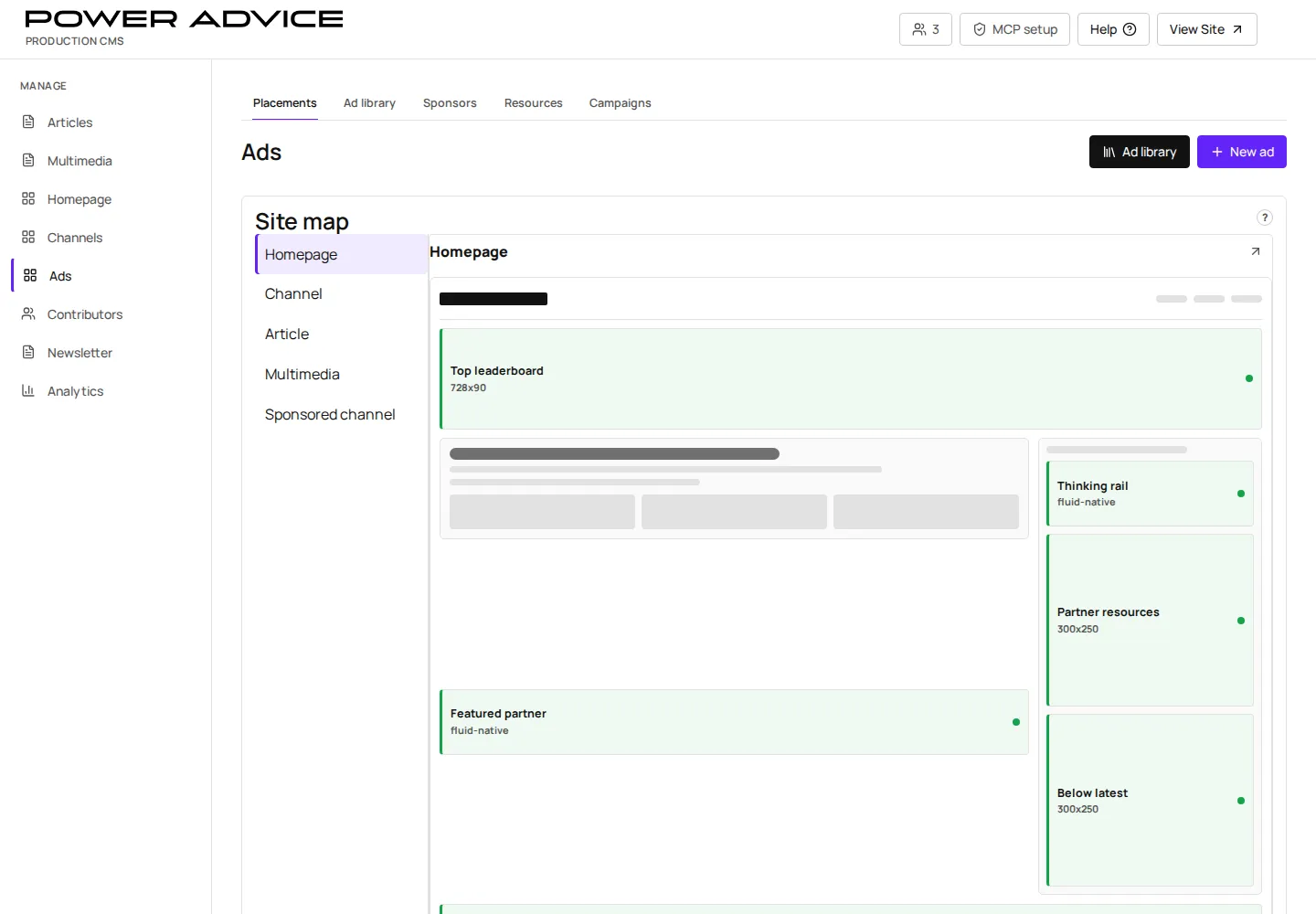
Section titled “Ads and sponsors”Use Ads to manage placements, creatives, sponsors, company resources, and campaigns.
Operator focus
Section titled “Operator focus”Tory should be able to open Ads and answer: what is live, where does it run, which sponsor owns it, what creative/link/tag is used, and how do I replace it safely?
Prerequisites
Section titled “Prerequisites”- Sponsor/advertiser identity, campaign objective, creative asset, destination URL, placement, flight dates, and accessibility text are approved.
- Third-party tags have been reviewed for sandboxed delivery.
- Open Ads.
- Use the section tabs: Placements, Ad library, Sponsors, Resources, Campaigns.
- Create or edit the relevant advertiser, inventory slot, campaign, creative, or resource.
- Connect creatives to campaigns and placements.
- Save draft.
- Preview the public surface that renders the placement.
- Publish or activate only after creative and destination review.
Placement decision guide
Section titled “Placement decision guide”| Task | Start here | Proof |
|---|---|---|
| Replace a sponsor creative | Ad library or Creative record | public placement renders the new image or tag |
| Change where a sponsor appears | Placement and Campaign connection | intended channel/homepage/article slot updates |
| Update a destination URL | Creative or Resource link field | click target opens the approved sponsor/resource URL |
| Pause unsafe creative | Campaign or Creative active state | public slot stops rendering that creative |
Resulting state
Section titled “Resulting state”Active ad records power public placements, sponsored channels, sponsored articles, and company-resource modules. Third-party HTML must render through sandboxed delivery.
Permissions
Section titled “Permissions”Ad operations changes require CMS write access and sponsor approval. Third-party tags require extra review before activation.
Failure cases and recovery
Section titled “Failure cases and recovery”- Creative not rendering: verify asset URL, campaign active state, placement key, and date window.
- Wrong sponsor label: update advertiser/campaign naming and sponsored article/channel fields.
- Unsafe third-party tag: disable the creative, replace with approved direct image or sandboxed tag, and re-preview.